
- A+
Introduction
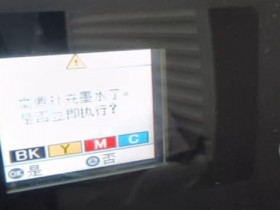
As we use our printers more and more over time, the need to replace or refill the ink cartridges becomes inevitable. However, even after these cartridges are replaced or refilled, the printer may still show an error message indicating that the ink waste has reached its maximum limit. This can be frustrating, particularly if you aren’t sure how to go about resetting the ink waste counter. This guide will help you to reset the ink waste on your printer.
Understanding Ink Waste
Modern printers have a built-in feature that tracks the amount of ink used during the printing process. When the ink waste reaches a certain level, the printer will stop working and display an error message. This is because the printer has a limited space for storing waste ink, which could eventually spill out and damage the printer’s internal mechanism.
Steps for Resetting Ink Waste
Resetting the ink waste on a printer can be done in several ways, but two methods are commonly used:
Method 1: Through Software or Driver
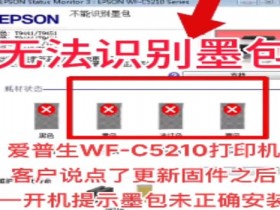
Some printer manufacturers have specific software or drivers that reset the ink waste counter. You can download and install these software or drivers from their official website. After installing the software, connect your printer to your computer and follow the instructions to reset the waste ink counter. This method is usually straightforward and suitable for most printers.
Method 2: Through Printer’s Control Panel
For printers without specific software or drivers, resetting the ink waste counter can be done through the control panel. The process may vary depending on your printer model, but generally, it involves the following steps:
Turn off your printer and unplug it from the power source.
Press and hold the power button while plugging in the power cord.
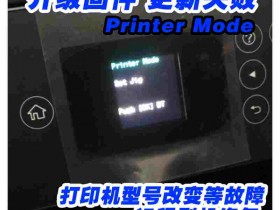
Continue holding the power button until the printer turns on and shows a message on the screen.
Release the power button and press the button or combination of buttons that initiates the ink waste resetting procedure. This can be found in your printer’s user manual or by searching online for your printer model.
Preventative Measures
While resetting the ink waste counter can be a helpful solution, it is important to take preventative measures to minimize the amount of waste ink in your printer. Some tips include:
Regularly maintain your printer, such as cleaning the print heads and performing printer alignment tests.
Use high-quality ink cartridges. Cheaper, inferior quality cartridges tend to produce more waste ink that can fill up your printer’s internal waste ink container quickly.
Print regularly, even if it is just test pages or sample documents. Printing helps to keep your printer’s ink flowing and reduces the chances that ink will accumulate in the waste ink container.
Conclusion
Knowing how to reset the ink waste counter on your printer is essential information for any printer user. If you encounter the “ink waste” message on your printer’s screen, don’t panic. Use the methods outlined in this guide to reset the counter, and take preventative measures to ensure that you don’t end up with the same issue again in the future.